MUE Data Viewer
Complete guide to viewing and understanding Medicare Medically Unlikely Edits (MUE) data.
Overview
The MUE Data Viewer provides read-only access to CMS Medically Unlikely Edits, which are units-of-service edits designed to reduce improper Medicare payments. MUE values represent the maximum units of service that would be appropriately reported for a given code on the majority of correctly reported claims.
Access: Navigate to Code Reference → MUE Limits from the dashboard sidebar.
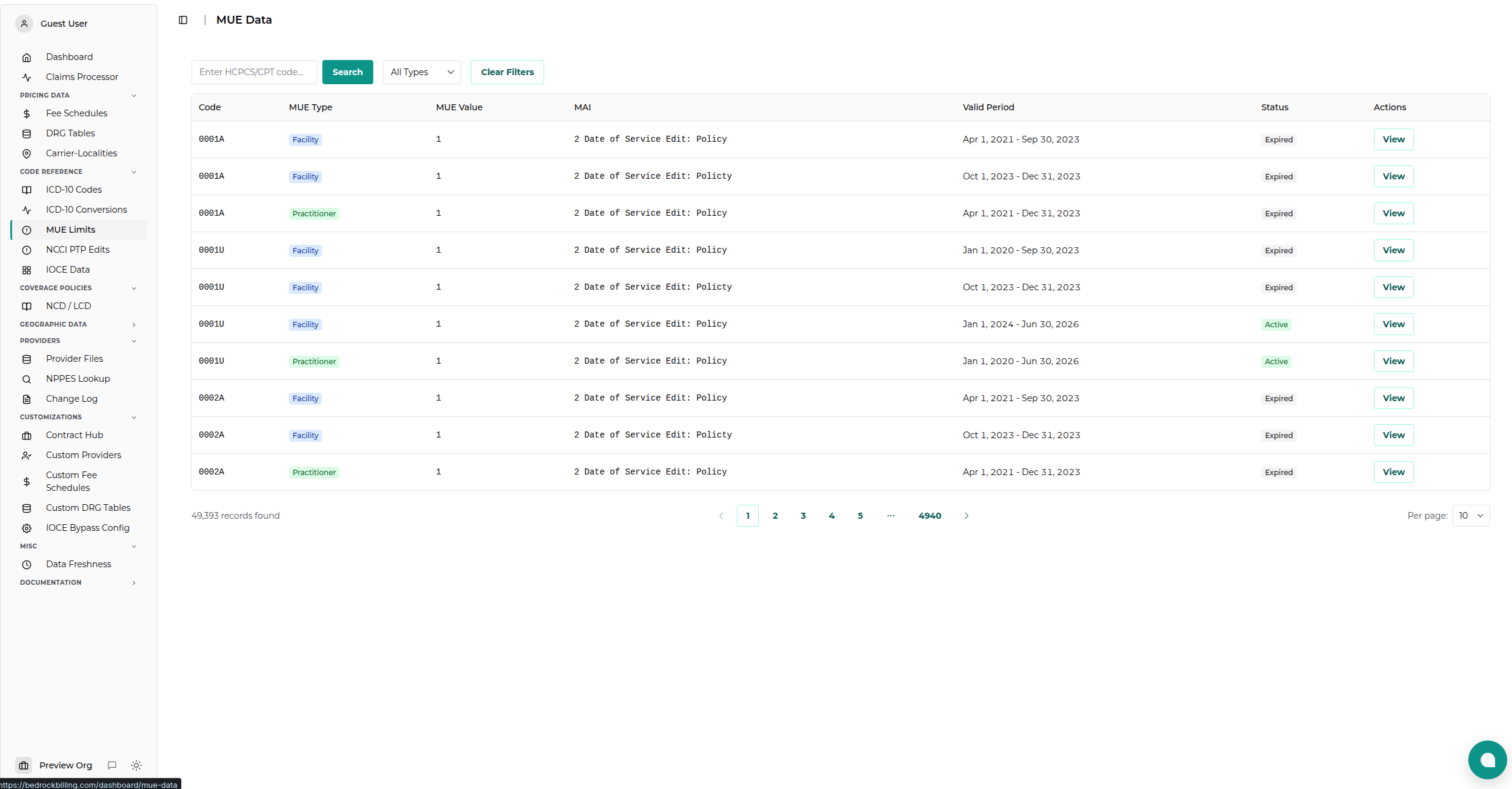
Data Coverage: Includes MUE edits for: - Facility services (hospital outpatient, ASC) - Practitioner services (professional claims) - DME (Durable Medical Equipment)
Understanding MUE Data
What are MUEs?
Medically Unlikely Edits (MUEs) are automated edits that: - Prevent improper payments by flagging unusually high units of service - Based on clinical judgment - considers anatomic limitations, CMS policies, and CPT coding instructions - Applied automatically by Medicare claims processing systems - Not claim denials - providers can appeal with documentation
MUE Components
Each MUE record contains:
| Field | Description |
|---|---|
| Code | HCPCS/CPT procedure code |
| MUE Type | Facility, Practitioner, or DME |
| MUE Value | Maximum units typically appropriate |
| MAI | MUE Adjudication Indicator (how edit is applied) |
| Valid Period | Effective date range for this MUE value |
| Rationale | Clinical or policy basis for the edit (when available) |
MUE Adjudication Indicator (MAI)
The MAI code determines how the MUE is applied:
| MAI | Application | Description | Example |
|---|---|---|---|
| 1 | Per Line Item | Edit applied to each individual line item | Each service line cannot exceed MUE value |
| 2 | Per Day (Policy) | Edit applied to sum of line items per day based on policy | Total daily units cannot exceed MUE value (policy decision) |
| 3 | Per Day (Clinical) | Edit applied to sum of line items per day based on clinical rationale | Total daily units cannot exceed MUE value (clinical limitation) |
Example: - Code 99213 (office visit) with MUE value 3 and MAI 1 - ✅ Billing 1 unit per line = OK - ✅ Billing 3 separate lines of 1 unit each = OK - ❌ Billing 4 units on one line = Flagged by MUE
Using the Viewer
Basic Search
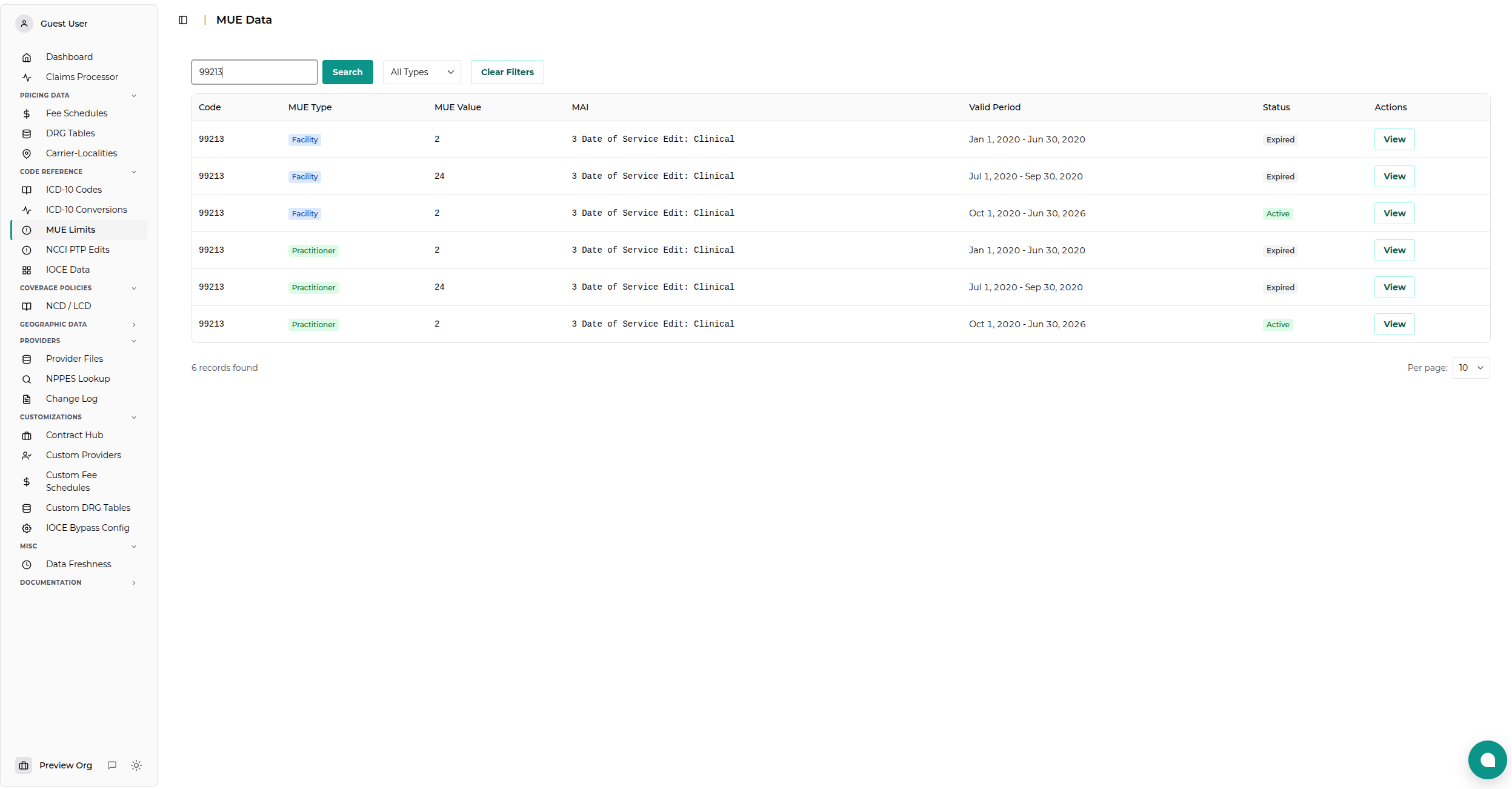
Search by Code:
- Enter HCPCS/CPT code in the search box (e.g.,
99213) - Click Search or press Enter
- View matching records across all MUE types
Tips:
- Prefix matching supported: Search 992 to find all codes starting with 992
- Case-insensitive: 99213 and 99213 return the same results
- No wildcards needed: Simply type the beginning of the code
Filter by MUE Type
Use the MUE Type dropdown to filter results:
- All Types (default) - Show all records
- Facility - Hospital outpatient and ASC services only
- Practitioner - Professional services only
- DME - Durable Medical Equipment only
Example Use Case:
You need to verify the MUE for chest X-ray (71010) in an outpatient setting.
- Search for
71010- Filter by Facility
- View current MUE value and MAI
Results Table
The results table displays key information at a glance:
| Column | Description |
|---|---|
| Code | HCPCS/CPT code (monospace font for readability) |
| MUE Type | Color-coded badge (Blue=Facility, Green=Practitioner, Orange=DME) |
| MUE Value | Maximum allowable units (bold for emphasis) |
| MAI | Adjudication indicator code (1, 2, or 3) |
| Valid Period | Date range when this MUE is/was active |
| Status | Active (green) or Expired (gray) badge |
| Actions | "View" button to see full record details |
Status Indicators: - 🟢 Active - MUE is currently in effect (valid period includes today) - ⚪ Expired - Historical MUE (valid period has ended)
Viewing Detailed Information
Click View on any record to open the detailed modal with:
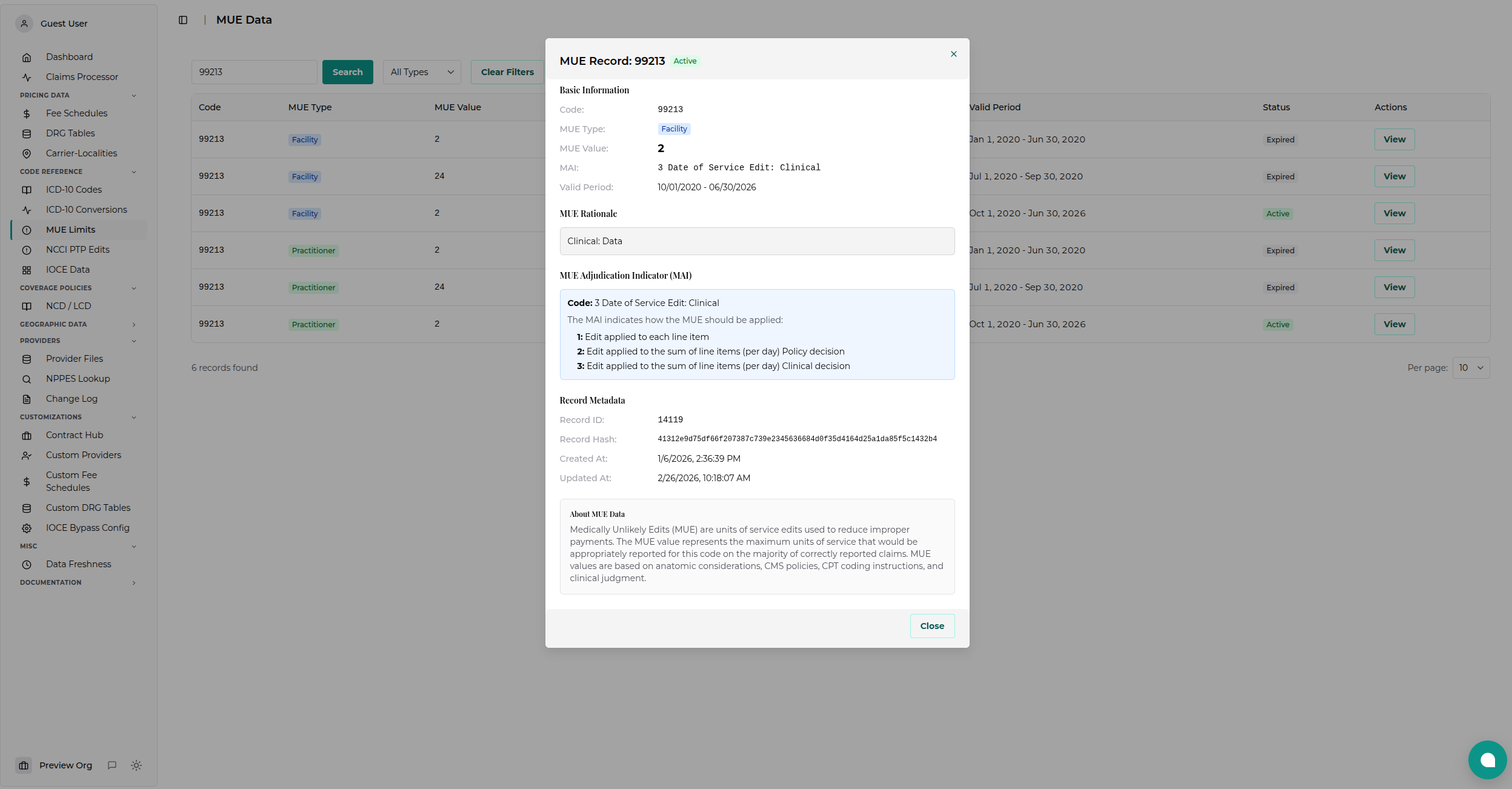
Basic Information
- Code - HCPCS/CPT procedure code
- MUE Type - Service setting (Facility/Practitioner/DME)
- MUE Value - Maximum allowable units
- MAI - How the edit is applied (with explanatory tooltip)
- Valid Period - Start and end dates for this MUE version
MUE Rationale
When available, displays the clinical or policy reason for the MUE value:
- Anatomic considerations (e.g., "Patient has only 2 eyes")
- CMS policies and coverage decisions
- CPT coding instructions
- Clinical practice standards
Note: Not all MUE records include a rationale field.
MAI Information Panel
The detail modal includes an informational panel explaining MAI codes:
- Code 1: Edit applied to each line item individually
- Code 2: Edit applied to sum of line items per day (policy-based)
- Code 3: Edit applied to sum of line items per day (clinical-based)
Record Metadata
Technical details for audit and tracking:
- Record ID - Internal database identifier
- Record Hash - Unique hash for deduplication
- Created At - When record was added to database
- Updated At - When record was last modified
Common Use Cases
1. Pre-Billing Verification
Scenario: Verify MUE before submitting claim
Steps:
1. Search for the procedure code (e.g., 93000 for EKG)
2. Filter by appropriate MUE type (Facility or Practitioner)
3. Check MUE value and MAI
4. Ensure your billed units don't exceed the MUE value
Example:
Code 93000 (EKG) has MUE value 1 with MAI 1 - Billing 1 unit = ✅ OK - Billing 2 units = ⚠️ Will be flagged (requires documentation)
2. Claims Denial Investigation
Scenario: Understand why claim was edited
Steps: 1. Search for the denied code 2. Review MUE value and MAI 3. Check if units billed exceeded MUE 4. Determine if MAI ⅔ applies to multiple line items
Example:
Claim for 99213 (office visit) denied with 4 units - MUE value: 3 with MAI 1 - Each line item limited to 3 units - 4 units exceeds MUE → Claim flagged
3. Historical MUE Research
Scenario: Track how MUE values changed over time
Steps: 1. Search for the code 2. Review all date ranges in results 3. Compare MUE values across different valid periods 4. Identify when changes occurred
Example:
Searching 76856 (ultrasound) may show: - 2023: MUE value 2 - 2024: MUE value 3 (increased) - 2025: MUE value 3 (unchanged)
4. Multi-Setting Comparison
Scenario: Compare MUE values between facility and practitioner settings
Steps: 1. Search for code without MUE type filter 2. Review all three types (Facility, Practitioner, DME) 3. Compare MUE values and MAI codes 4. Understand setting-specific limitations
Example:
Code may have different MUE values: - Facility: MUE value 4 - Practitioner: MUE value 2 - DME: Not applicable
5. Surgical Procedure Planning
Scenario: Plan for multiple procedures in one session
Steps: 1. Search for all planned procedure codes 2. Review MUE values and MAI codes 3. Determine if multiple units are clinically appropriate 4. Prepare documentation for units exceeding MUE
Pagination and Navigation
Page Controls
- Items per page: 25 records
- Navigation: Previous/Next buttons
- Page numbers: Click specific page number to jump
- Total count: Displayed above table
Tips: - Use filters to reduce result set - Pagination resets to page 1 when filters change - Page state preserved when viewing record details
Clear Filters
Click Clear Filters to: - Reset code search to empty - Reset MUE type to "All Types" - Return to page 1 - Show all available MUE records (paginated)
Understanding Date Ranges
Valid Period Format
Dates displayed as: MM/DD/YYYY - MM/DD/YYYY
Example: 01/01/2025 - 12/31/2025
Active vs Expired
- Active: Current date falls within valid period
- Expired: Current date is after end date
Use Cases: - Active records: Use for current billing - Expired records: Research historical claims
Multiple Date Ranges
Some codes have multiple records with different date ranges: - Represents MUE value changes over time - Each range is mutually exclusive - Always check effective dates when researching
Data Freshness
Update Frequency: Quarterly (January, April, July, October)
Source: CMS National Correct Coding Initiative (NCCI) files
Coverage: Includes current quarter and historical data back to 2018
Note: CMS publishes MUE updates quarterly. Check the "Stats" section for latest data range.
Export and Integration
Manual Export
Currently, the viewer supports: - Copy individual records - Select text from detail modal - Screenshot - Use browser screenshot for quick reference
API Access
For programmatic access, see MUE Data API documentation.
Common API use cases: - Bulk data export - Automated compliance checking - Integration with billing systems - Historical trend analysis
Troubleshooting
No Results Found
Possible causes: 1. Code doesn't have an MUE (not all codes have edits) 2. Incorrect code format (check for typos) 3. Code only exists in specific MUE type (remove type filter) 4. Code is new and not yet in database
Solutions:
- Try removing all filters
- Search with partial code (e.g., 992 instead of 99213)
- Verify code is valid HCPCS/CPT code
- Check if code is brand new (may not be in quarterly update yet)
Multiple Records for Same Code
This is normal! Multiple records indicate: - Different MUE types (Facility vs Practitioner vs DME) - Different valid date ranges (MUE value changed over time) - Each record is for a specific setting and time period
Solution: Check both MUE type and valid period to find the correct record for your use case.
Status Shows "Expired"
Meaning: The MUE record is historical (end date has passed)
Actions: - Look for a newer record with current dates - If no active record exists, the code may no longer have an MUE - Use expired records for researching past claims
MAI Code Confusion
Understanding MAI: - MAI 1: Each service line evaluated separately - MAI ⅔: All same-day services summed together
Example:
MUE value 2, MAI 1: - Line 1: 2 units ✅ - Line 2: 2 units ✅
MUE value 2, MAI 3: - Line 1: 1 unit ✅ - Line 2: 1 unit ✅ - Total: 2 units ✅ - Line 3: 1 unit ❌ (would exceed daily total)
Best Practices
✅ DO:
- Check MUE before billing - Prevent claim edits proactively
- Verify correct MUE type - Facility vs Practitioner settings differ
- Review valid date range - Use active records for current claims
- Understand MAI - Know how the edit will be applied
- Document medical necessity - Prepare for units exceeding MUE
- Monitor quarterly updates - MUE values can change
❌ DON'T:
- Assume MUE = claim denial - MUEs flag for review, not automatic denial
- Ignore MAI codes - MAI determines how units are counted
- Use expired records - Always check for current values
- Bill multiple units without checking - Verify MUE first
- Forget setting differences - Facility and Practitioner MUEs may differ
Additional Resources
CMS Official Documentation
- National Correct Coding Initiative - CMS NCCI homepage
- MUE Policy Manual - Official policy guidance (Chapter 1, Section W)
Related Viewers
- Fee Schedules Viewer - View payment rates alongside MUEs
- ZIP9 Data Viewer - Medicare ZIP code data
- PFS Localities - Geographic fee schedule variations
API Documentation
- MUE Data API Endpoints - Programmatic access
- Authentication - API key setup
About MUE Data
Background
MUE edits were implemented by CMS to: - Reduce improper Medicare payments - Identify billing errors before payment - Ensure medically appropriate units of service - Maintain program integrity
How MUEs are Developed
MUE values are based on: - Anatomic considerations - Physical limitations (e.g., 2 eyes, 10 fingers) - CMS policies - National coverage determinations - CPT coding instructions - AMA guidelines - Clinical judgment - Medical expert input - Claims data analysis - Statistical review of billing patterns
MUE Updates
CMS reviews and updates MUEs quarterly: - New codes added - Existing MUE values adjusted - Rationales clarified - Policy changes implemented
Stay Informed: Check for quarterly updates (January, April, July, October)
Frequently Asked Questions
Q: What happens if I bill units exceeding the MUE value?
A: The claim will be flagged for review. It's not an automatic denial. You can provide documentation supporting medical necessity, and the claim may be paid upon review.
Q: Are MUE values the same for all payers?
A: No. MUE values shown here are Medicare-specific. Commercial payers may have different edits or no edits at all.
Q: Why do some codes have different MUE values for Facility vs Practitioner?
A: Clinical practice and anatomic considerations differ by setting. For example, services in a facility may have different limitations than in a physician office.
Q: Can I bill more units than the MUE value?
A: Yes, with proper documentation. MUEs are not absolute limits—they're flags for unusually high units that require review.
Q: How do I know which MAI applies to my claim?
A: The MAI is specific to each code and setting. Always check the MUE record for the exact code and MUE type you're billing.
Q: What if I don't see a code I'm looking for?
A: Not all HCPCS/CPT codes have MUEs. If a code doesn't appear, it may not have an established MUE value.
Q: Are MUE values negotiable?
A: No. MUE values are set by CMS and apply universally to Medicare claims processing.
Q: How far back does historical data go?
A: Our database includes MUE data from 2015 to present, with quarterly updates.
Tips and Tricks
Quick Code Lookup
Use keyboard shortcuts: - Enter key - Submit search while in code input field - Tab - Navigate between search and filter fields
Comparing Across Settings
To compare Facility and Practitioner MUEs: 1. Search code without MUE type filter 2. Look for multiple records in results 3. Compare MUE values and MAI codes side-by-side
Finding Codes with Same Prefix
Leverage prefix search:
- Search 999 to find all codes in 999xx range
- Search G0 to find all G-codes starting with G0
- Useful for category-level analysis
Identifying Recent Changes
To find codes with recent MUE changes: 1. Search for the code 2. Review all date ranges 3. Look for multiple records with different effective dates 4. Compare MUE values across time periods
Mobile Access
The viewer is responsive and works on mobile devices: - Table scrolls horizontally on small screens - All filters accessible on mobile - Detail modal adapts to screen size
Support
For questions or issues with MUE data:
- Data accuracy concerns: MUE data is sourced directly from CMS NCCI files. If you believe a value is incorrect, verify with official CMS publications
- Technical issues: Contact support via the dashboard
- API access: See API documentation
- Feature requests: Submit feedback via the application
Summary
The MUE Data Viewer provides comprehensive access to Medicare's Medically Unlikely Edits:
✅ Search by code - Quick lookup with prefix matching
✅ Filter by type - Facility, Practitioner, or DME
✅ View full details - MUE value, MAI, rationale, and metadata
✅ Track history - See how MUE values changed over time
✅ Verify billing - Check units before submitting claims
✅ Understand edits - Learn how MAI codes affect claims processing
Use this tool to improve billing accuracy, reduce claim edits, and better understand CMS editing policies.