PFS Localities Viewer
Complete guide to viewing and searching Medicare Physician Fee Schedule (PFS) Localities and Geographic Practice Cost Indices (GPCI).
Overview
The PFS Localities Viewer provides access to the geographic adjustment factors used in Medicare payment calculations. Medicare payments are adjusted geographically to reflect the varying costs of providing services in different areas (localities).
Access: Navigate to Pricing Data → Carrier-Localities from the dashboard sidebar.
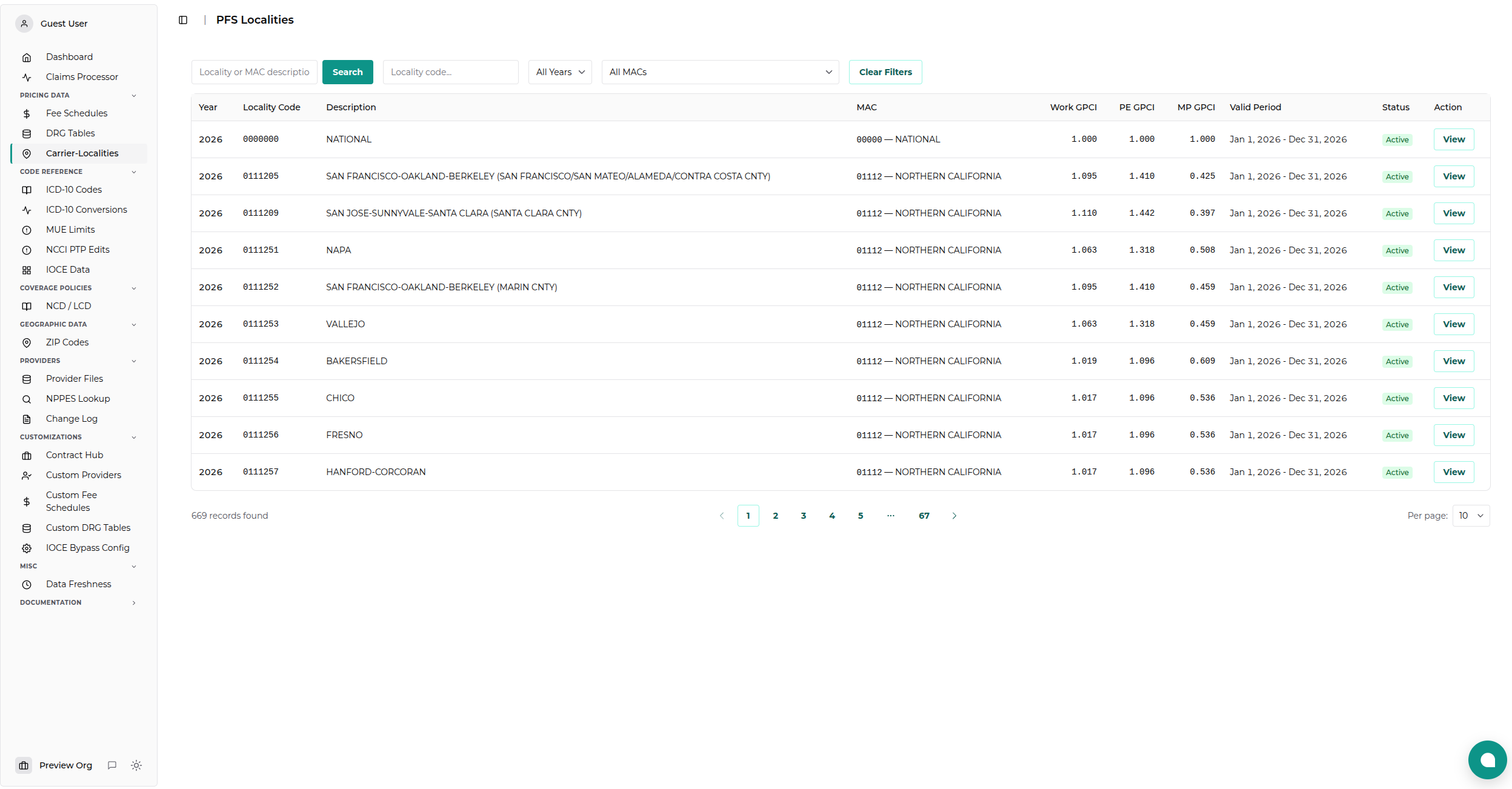
Data Coverage: - GPCI Values: Work, Practice Expense, and Malpractice indices - Localities: Geographic areas defined by CMS - MACs: Medicare Administrative Contractors assignments - History: Annual data updates
Understanding GPCI Data
What are GPCIs?
Geographic Practice Cost Indices (GPCIs) are used to adjust the Relative Value Units (RVUs) of a procedure based on the cost of practice in a specific area. There are three types of GPCI:
| GPCI Type | Description | Impact |
|---|---|---|
| Work GPCI | Adjusts for the relative cost of physician work (time, skill, effort) in an area. | Affects the Work RVU component |
| PE GPCI | Practice Expense GPCI. Adjusts for the cost of maintaining a practice (rent, staff, supplies). | Affects the Practice Expense RVU component |
| MP GPCI | Malpractice GPCI. Adjusts for the cost of professional liability insurance. | Affects the Malpractice RVU component |
Payment Calculation Formula
The GPCI values are applied to the RVUs using the following formula:
\text{Payment} = [(\text{Work RVU} \times \text{Work GPCI}) + (\text{PE RVU} \times \text{PE GPCI}) + (\text{MP RVU} \times \text{MP GPCI})] \times \text{Conversion Factor}
Using the Viewer
Search and Filters
The viewer offers multiple ways to find specific locality data:
1. Text Search - Search by locality name (e.g., "San Francisco", "New York") - Search by MAC description (e.g., "Noridian", "Novitas")
2. Locality Code Filter
- Enter a specific 7-digit locality code (e.g., 0111205)
- Useful for precise lookups when the code is known
3. Year Filter - Select a specific year to view historical data - Defaults to "All Years" if not selected
4. MAC Filter - Filter by Medicare Administrative Contractor - List updates based on the selected year
Results Table
The results table displays the following information:
| Column | Description |
|---|---|
| Year | The calendar year for the data |
| Locality Code | Unique 7-digit code identifying the area |
| Description | Name of the locality (e.g., "LOS ANGELES, CA") |
| MAC | Contractor code and name |
| Work GPCI | Geographic adjustment for physician work |
| PE GPCI | Geographic adjustment for practice expense |
| MP GPCI | Geographic adjustment for malpractice |
| Period | Valid date range for these values |
| Status | Active (currently valid) or Inactive |
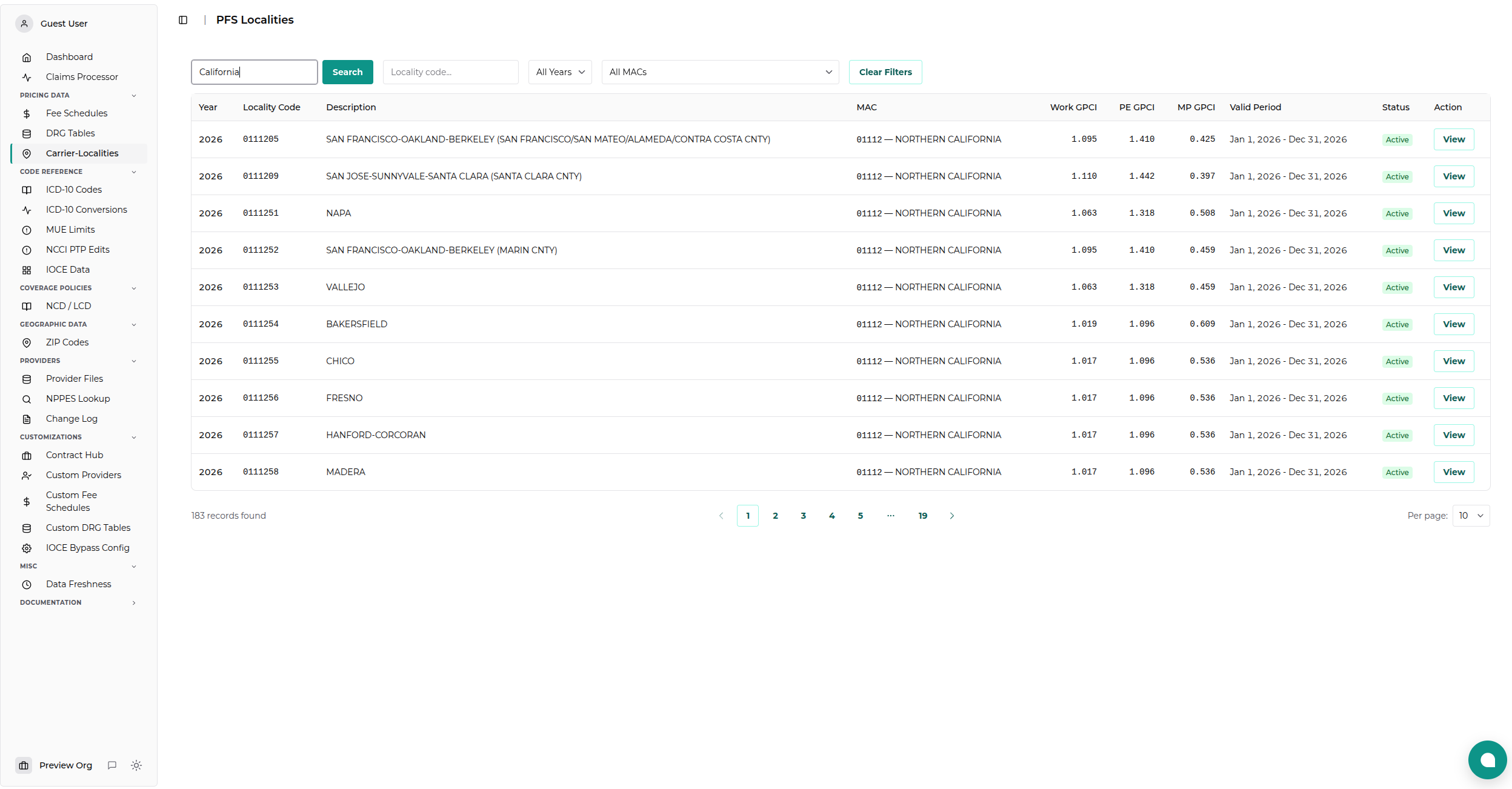
Viewing Details
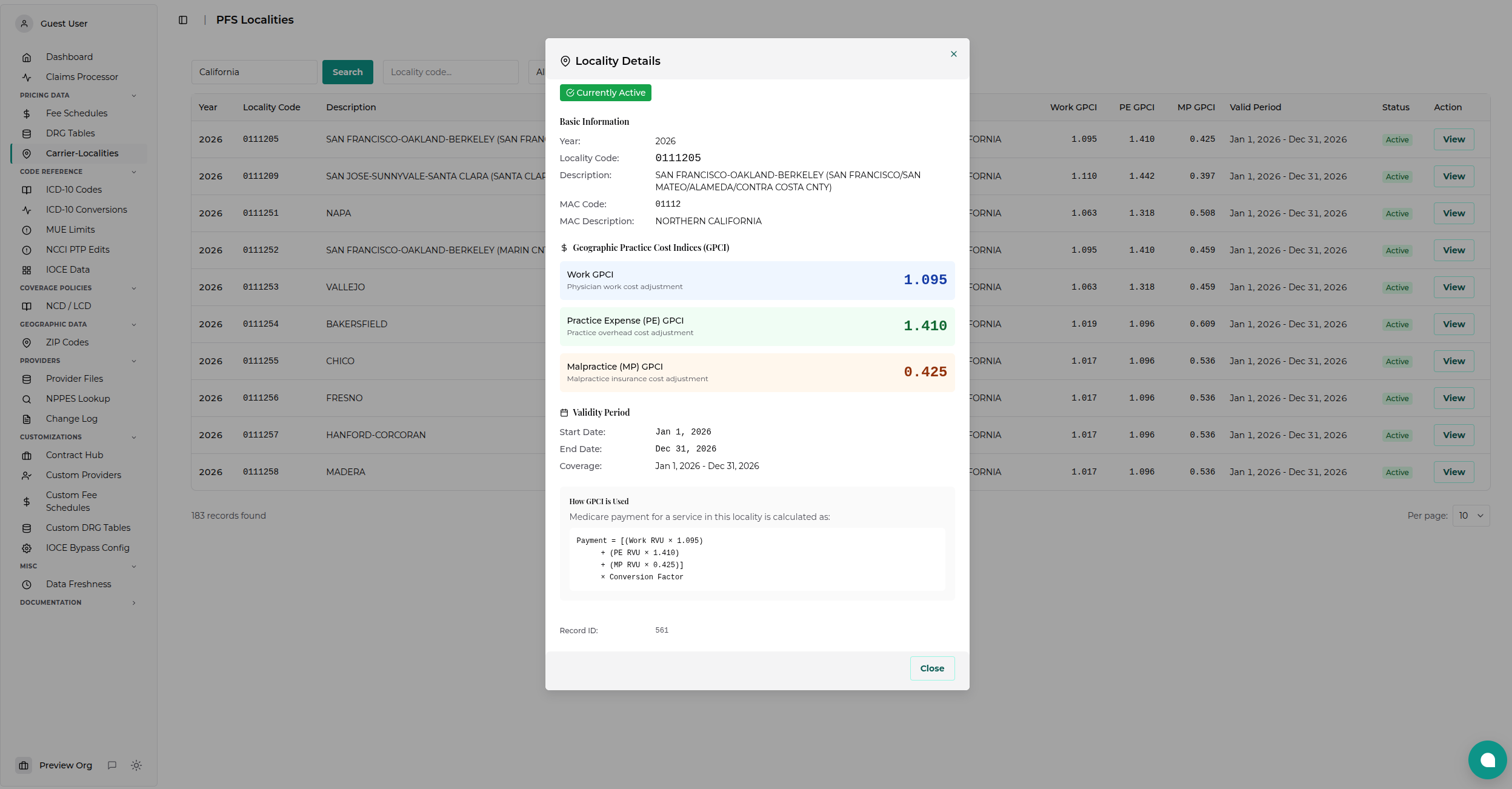
Click the View button on any row to open a detailed modal containing: - Full locality and MAC descriptions - Precise GPCI values (up to 3 decimal places) - Exact start and end dates - Record metadata
Common Use Cases
1. Pricing Calculations
Scenario: You need to calculate the allowable reimbursement for a procedure in a specific city. 1. Search for the city name (e.g., "Seattle"). 2. Identify the correct locality record for the current year. 3. Note the Work, PE, and MP GPCI values. 4. Apply these values to the procedure's RVUs using the formula above.
2. Verifying MAC Jurisdiction
Scenario: You need to know which MAC covers a specific area.
1. Search for the area name.
2. The "MAC" column displays the contractor code (e.g., 01112) and name.
3. Historical Analysis
Scenario: You are auditing claims from a previous year. 1. Select the specific year from the Year filter. 2. Search for the locality. 3. Use the GPCI values from that specific year to verify payment accuracy.
Data Freshness
Update Frequency: Annually (typically in January)
Source: CMS Physician Fee Schedule Look-Up Tool and public data files.
Note: GPCI values can change annually based on CMS updates. Always ensure you are viewing the data for the correct year matching your date of service.
Related Resources
- Fee Schedules Viewer: Find RVU values for procedures to use with GPCIs.
- ZIP9 Data Viewer: Map a specific ZIP code to its Carrier Locality code.
- PFS Localities API: Developer documentation for programmatic access.